Order lifecycle and execution
An order's lifecycle describes the manufacturing record. A split's execution state and a machine's current status describe related work, so they can differ. Pausing a station does not introduce a separate “paused” production-order status.
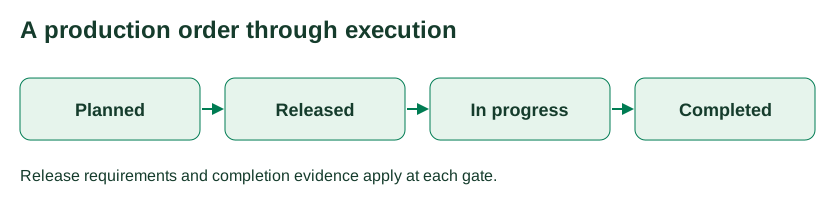
Illustration of a manual workflow. The state table below also includes supported corrections, direct starts and cancellation.
Order states
| State | Meaning | Ordinary next states |
|---|---|---|
| Draft | Work being prepared | Planned, cancelled |
| Planned | Prepared manufacturing work | Released, in progress, cancelled |
| Released | Work released for execution | Planned, in progress, cancelled |
| In progress | Execution has begun | Planned, released, completed, cancelled |
| Completed | Manufacturing work closed | No ordinary transition |
| Cancelled | Manufacturing work cancelled | No ordinary transition |
Older records may use “open” for planned and “done” for completed. Explicit repeat, rework or authorized status-correction paths are exceptions to the ordinary transitions; they must not be treated as a routine way to erase history.
Release and start work
- Open the order and verify material, quantity, operations, dates and assigned work.
- Complete custom fields required for release, then use the available status action to release it.
- At the correct work center or App, select the order and exact operation/split to execute.
- Complete any fields required at start before starting or reporting progress.
The shared lifecycle checks applicable custom-field requirements at release, start and completion. Requirements can depend on material and action context; a field needed at completion may not block creation. A configured App may enforce additional workflow prerequisites, such as recorded output placement.
The order editor also supports an explicit manual status override. It can bypass ordinary transition gates, so use it for an agreed correction and inspect the resulting history. Changing status alone does not reconstruct missing quantities, reports or machine events.
Report actual production
Use the quantity control provided by the order or configured production App. In the standard production tracking bar, the quantity entered is additional output, not the new accumulated total. If 40 pieces are already recorded and another 10 are made, record 10 and expect 50.
Verify the quantity, unit, order and, where selected, operation/split before submitting. Split reporting belongs to that split; do not also report the same output at order level. Ennea can start a planned or released order when progress is reported. Reaching the planned quantity can prompt completion; follow the confirmation and satisfy completion requirements.
Actual production, scrap and rework, current holder contents and Warehouse on-hand stock are separate measurements. Do not subtract or sum them automatically without checking the workflow your organization uses.
Complete, repeat or cancel
Use Complete order or the completion action in the configured App, review the final quantity and confirm. Missing required fields or enforced workflow evidence block completion. The shared service may pass through in-progress when completing planned/released work; this is not evidence of independently measured run time.
Repeat order on a completed order records repetition context and reopens work on that record. Check the resulting quantities and dates before continuing. Use a new order instead when the work needs a separate identity.
Cancel through the available status action after reviewing execution and customer/component links. Cancelling customer demand does not automatically cancel linked production. Cancellation also does not reverse existing inventory movements or delete previous reports.
For rescheduling, unplanning or execution division, use Planning. Review started work first: in-progress splits and terminal orders are not eligible for normal planner changes.
History and recovery
Review order notes, reports and available history. Nexus Activity and Trace show retained accessible evidence, with their coverage limits; they are not a guarantee of a complete audit trail.
| Problem | Next step |
|---|---|
| Required-field gate failed | Read the missing-field message, complete the applicable order fields and retry |
| Status action unavailable | Check current status, scope and permission; refresh if another user changed the order |
| Quantity seems doubled | Inspect saved totals and recent reports before submitting again |
| Response lost during reporting | Reload the record and verify whether the quantity was saved; use the original retry control if the App provides one |
| Completed work needs correction | Use the designated repeat, exception or authorized correction workflow; preserve its history |
| App prerequisite blocks reporting | Inspect the exact operation/split and required placement evidence; another split's output may not qualify |
See production orders, work centers and roles and permissions.