Operations Studio overview
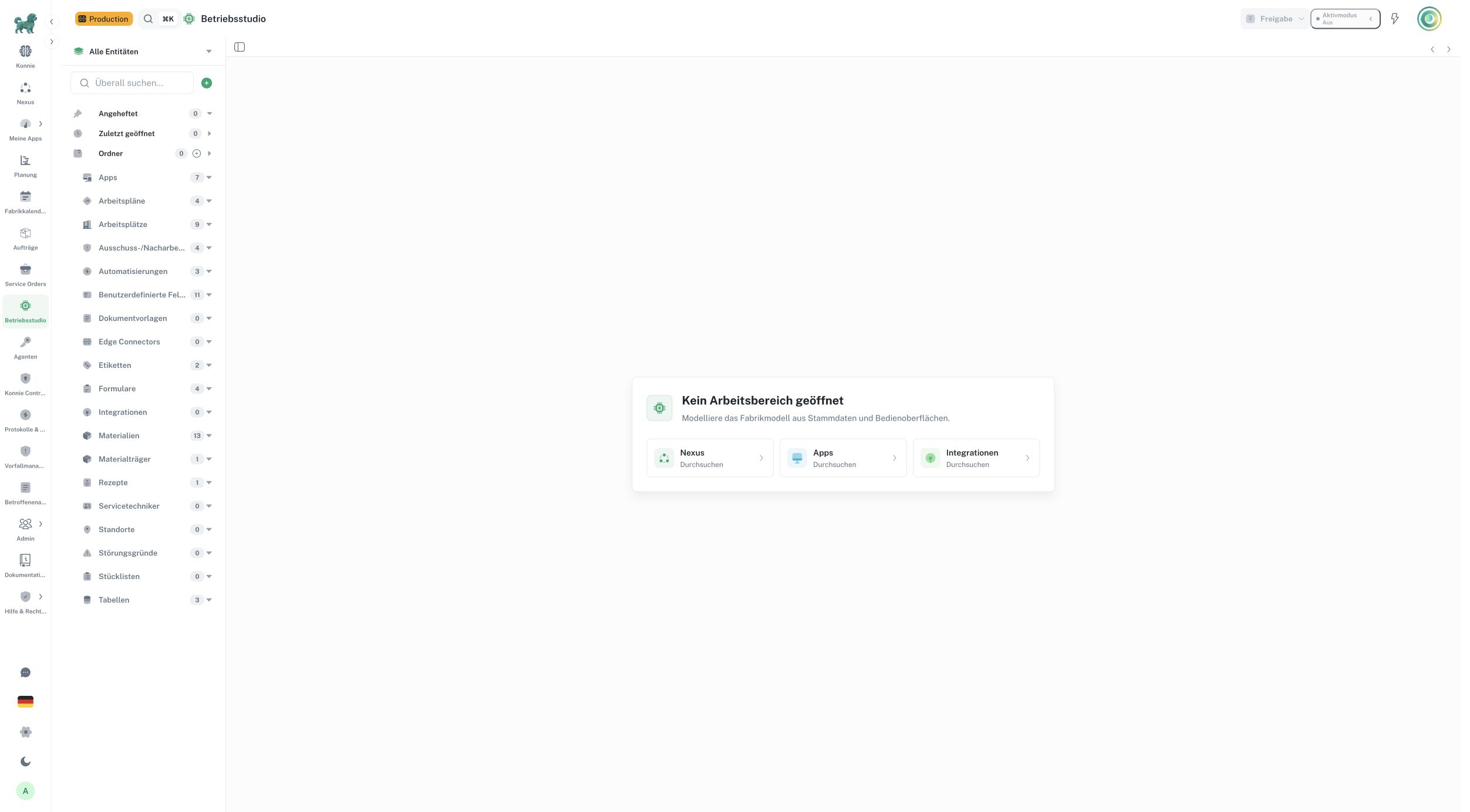
Operations Studio is the workspace for configuring the reusable building blocks that operational Apps and Konnie use. Open Operations Studio from the product navigation, then select the intended site and environment. The explorer on the left finds records; workspace tabs in the center hold their editors; the selected editor supplies its configuration and preview controls.
Find your configuration
Choose a domain in the explorer or use All Entities to search across accessible categories. Categories with a loading or unavailable state are not proof that their records are empty. Check the scope and your permission if an expected item is absent.
| Domain | What it configures |
|---|---|
| Workcenters | Production structure, groups and work centers. |
| Materials, Bill of Materials, Routings | Product identities, required components and manufacturing operations. |
| Apps, Tables | Operator interfaces, App-defined inputs and structured collected records. |
| Models | Shared typed records used by several custom Apps. |
| Labels, Document templates | Printable label layouts and reusable report documents. |
| Automations, Recipes | Event workflows and calculated order parameters. |
| Material holders, Locations | Output containers and their operational locations. |
| Integrations, Edge Connectors | Connected-system contracts and installed factory connectivity. |
| Custom Fields | Reusable additional fields for supported operational records. |
| Maintenance technicians, Malfunction Reasons, Scrap / Rework Reasons | Operational assignments and reason catalogs. |
| Maintenance instructions, Maintenance plans | Reusable work instructions, evidence requirements and recurring maintenance. |
| Nexus | The map of business objects and the configuration that reads or acts on them. |
Select a record to open its workspace tab. Open several related assets while designing a workflow, then return through their tabs. The explorer provides personal recent/pinned items and shared folders. A pin or folder organizes navigation; it does not change the record's permissions or production meaning.
Organize work with shared folders
Folders groups the team's configuration for the selected site and environment. For example, an Assembly folder can contain an App, a work center, a work plan and a quality App. The same definition can appear in several folders and remains available in its normal category. Folder membership never changes access rights.
Click a folder's name to open its contents as a tab, or its chevron to expand it
in the explorer. Use Add entities to search accessible definitions and select
several together, or drag an explorer entry into a folder. Use the folder's …
menu to rename it, create a subfolder, move it, change its appearance or delete it.
Remove or move child folders before deleting their parent. Removing an entry from
a Studio folder or deleting the Studio folder keeps the underlying definitions.
Material folders remain a separate material classification.
Pinned and Recently opened are personal, as are expanded folders. Pin a shared folder to keep your own areas at the top. Folder changes are shared with colleagues in the same site and environment. Management actions require folder management permission; individual definitions still require their own access.
Existing personal folders stay private until you explicitly use Share with team, review the selected folders and contents, and confirm the import. Their personal source is preserved. If another person has changed a folder while you edit it, refresh and review the current contents before trying again.
Organize with Konnie
Ask Konnie to organize existing entities by product family, department or process. For example: “Review our materials and organize them into product folders. Reuse existing folders and leave unclear assignments for review.” Konnie can inspect the complete paginated inventory, create nested folders, rename or move existing folders, and add or remove references. It uses current permissions and the selected site and environment.
The normal change review shows final folder paths and searchable added/removed entities. Your current Konnie execution setting determines whether review is required before applying. One atomic proposal supports up to 50 folders and 1,000 assignments; larger organizations continue in sequential batches. A teammate's intervening change requires a refreshed proposal. Existing records, personal pins and recent items retain their current behavior.
Create and edit
Use a category's create action or the global Add menu. The available action reflects your current design permission. Enter the basic definition, use its editor or canvas for detailed configuration and check the save indicator before leaving.
Many versioned editors autosave an editable draft and provide a named checkpoint or History. Autosaving does not publish it. Tables instead use Save table to apply their schema; they have no separate publication step. See Publishing and governance for the differences.
Use duplicate, delete, unpublish or archive controls only where the selected editor offers them. Their effects differ by entity type. Read the confirmation, review consumers and avoid deleting an asset still used by a published workflow. Restoration from History normally prepares editable content for review; publish it when it should become live.
Set up a production line
- Confirm the site/environment and create the work-center structure.
- Define materials with stable identifiers, units and procurement types.
- Create and publish a BoM and routing for the product; resolve representative variants in preview.
- Create the operator App with its own inputs and connect the required published dependencies.
- Create and publish any Automation, then activate it deliberately.
- Open the published App with the intended operator and verify one agreed test job and its persisted result.
- If using Test and Production, review the configuration promotion and verify its target separately.
Keep operational execution in the relevant Apps. Studio configures the process; publishing a routing does not complete an order, and promoting configuration does not copy runtime history.
For maintenance, set up instructions and plans, then use the Maintenance workspace to dispatch work and the configured Apps to execute it. For a collection-only workflow, start with Collecting data with Apps: use a Model for a new shared record type and keep existing Tables for their current Apps. For understanding configuration dependencies, use Factory Model and Nexus.