Routings and recipes
A Routing defines manufacturing operations and their resource/time requirements. A Recipe calculates order parameters through a separate graph. Use a Routing to describe where and in what order work happens; use a Recipe when existing order inputs need calculated helper values or final parameters.
Create a Routing
- Open a Material and choose Create Routing, or open Operations Studio → Routings.
- Name the routing and select Standard or Variant Aware.
- Choose whether it is the default routing for the Material.
- Add operations with clear names, eligible work centers, setup time and a processing-time calculation.
- Keep the intended primary work center in the eligible selection. Review the operation order and dependencies in the graph.
- Preview representative configuration values, save and publish.
Setup time is the operation's setup estimate; run time is the per-unit estimate in minutes. These estimates inform order/planning calculations rather than recording actual finished production. The Scheduler can use any eligible resource; the retained primary resource is preferred while selected.
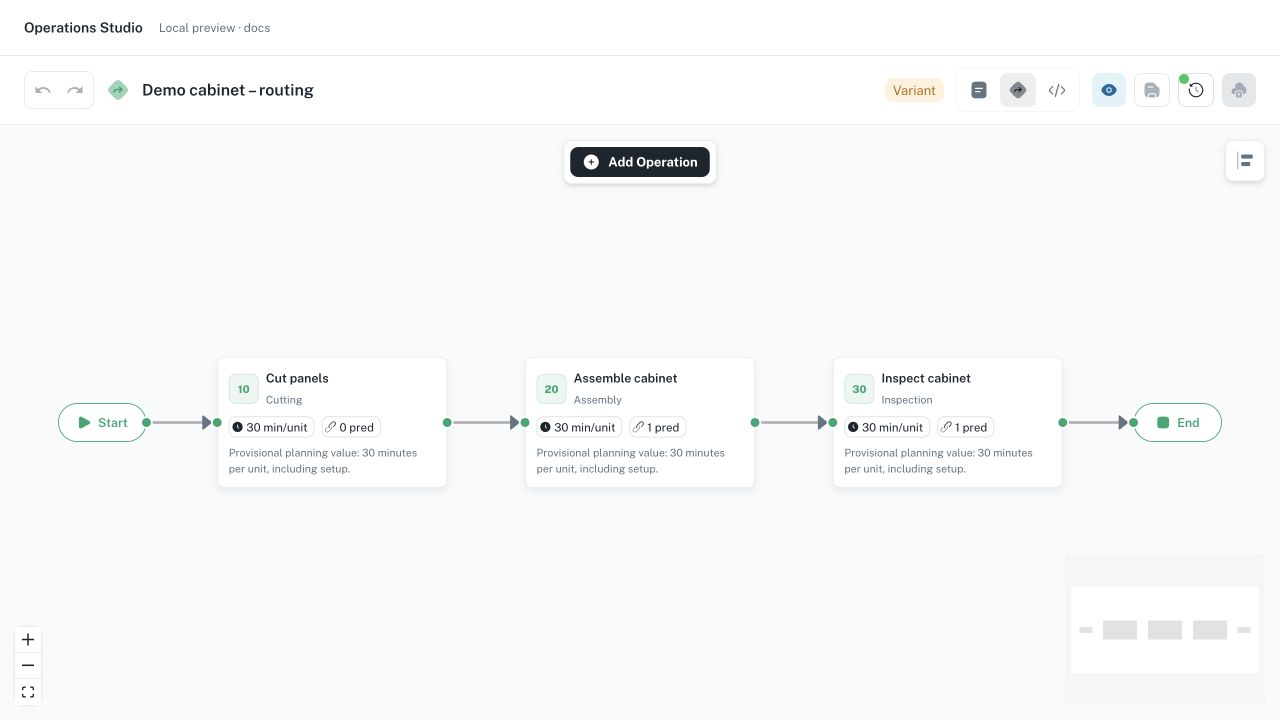
Local illustration using fictional cabinet data and three sequential operations. The 30-minute duration is an illustration, not a validated estimate for your product or the tutorial.
Variants and dependencies
Variant-aware routing conditions determine whether an operation applies. The Configuration Context reads parameter definitions from the Material's 150% BoM. Configure that BoM first when you need product variants.
Use Add condition or Edit condition on an operation or dependency to build AND/OR rules using the available typed parameters. A dependency condition decides whether that predecessor relationship applies; an operation condition decides whether the operation exists in the resolved route. A complex expression that the visual builder cannot represent requires deliberate review before replacing it.
Use Preview to compare included/excluded operations for each product variant. Check that retained operations have the intended predecessor relationships and eligible work centers. Save and publish the reviewed routing. Existing orders keep their generated operations; a later routing publication does not automatically rebuild them.
Calculate processing time per operation
Open Processing time calculation on an operation. Konnie can write or adjust the calculation; review its source and the results before publishing. Product parameters from the Material's 150% BoM are available by their key in Standard and Variant Aware routings.
The code returns minutes per unit. A fixed time is simply return 30;. For example:
if (material === "stainless_steel") {
  return width_mm > 1200 ? 20 : 16;
}
return 12;
These are illustrative estimates. Calculations support if/else, const values, arithmetic, comparisons, boolean conditions, ternaries and Math.min, Math.max, Math.ceil, Math.floor, Math.round and Math.abs. Every path must return a finite number of zero or more minutes. Missing inputs and invalid results remain errors; there is no implicit fallback. Use the final return for the default behaviour.
The calculation preview shows editable configuration values, quantity, minutes per unit, total processing time, the inputs actually read and the executed conditions, intermediate values and return line. The code highlights executed lines. Compare scenario retains representative configurations and recalculates their results when the source changes. Include boundary sizes and configurations that take different branches when reviewing a change.
Opening a fixed time or older time rules shows equivalent source without changing the draft. Editing the source makes it the authoritative calculation. Incomplete code can be saved as a draft, but publication requires a valid calculation. Product configuration preview cards show the resolved time and return line; excluded operations do not have their time calculated.
New production orders retain the resolved time, exact calculation source, language version and executed path in their routing snapshot. Later routing changes do not recalculate existing orders automatically. Setup time remains the fixed setup estimate currently entered on the operation; changeovers from the preceding job, its colour or the machine's state are separate from this calculation.
Build a Recipe
Open Operations Studio → Recipes and create a Recipe. Configure its scope/candidate order selection, then build one linear sequence on the canvas.
| Node | Meaning |
|---|---|
| Criteria | Allows matching orders to proceed through the calculations. |
| Compute | Creates a helper value for later calculations; does not write a final order parameter. |
| Lookup Table | Uses ordered match rows; the first matching row wins, otherwise its default is used. |
| Set Parameter | Calculates and writes one final order parameter. |
Every node should belong to the sequence. Branches, joins and unreachable nodes are unsupported for Recipe execution, even if a canvas can visually show them. Connect helpers before the Set Parameter nodes that use them. Configure one final output per Set Parameter node.
For numeric calculations, expressions can use order fields, param("key"), customField("key") and offered functions such as round, ceil, floor, min, max and abs. For example, a Compute node could calculate param("width_mm") + 80, then a Set Parameter node write that result as the final leaf width. Use typed inputs and a purposeful fallback rather than silently turning missing dimensions into a valid product.
Preview, publish and apply a Recipe
Choose Preview against representative orders and check every final parameter before publication or application. Publish the reviewed draft and use Activate for automatic application where configured. Deactivate marks the Recipe archived and stops its automatic use; it can be reactivated.
Apply to Selected Orders limits the explicit action to selected orders. Apply to All Orders targets all matching orders in the current scope and can overwrite existing custom-field values. Read its confirmation and verify the intended selection before applying. Publication/activation alone is not evidence that all historical orders were recalculated.
Use History and checkpoints to inspect/restore previous configuration. Restoration prepares a draft; review and publish it, and decide separately whether existing orders need another application.
If an order has no generated operations, check its Material and default published Routing. If the wrong variant appears, compare BoM parameters and routing conditions. If a Recipe fails, check topology, input types, missing helpers and the node's expression. See Production order creation for the resulting operational flow.