Konnie overview
Konnie is Ennea's AI employee. Ask it to explain permitted factory data, analyze a file, prepare a configuration, or help with operational work. Konnie can use connected tools as well as produce text, so always distinguish an explanation, a proposed change, and a saved result.
Before you start
Sign in, select the intended organization, site, and environment, and check that you can open the relevant records yourself. Your administrator controls AI availability, providers, tools, learning, and approvals. An assistant shown in the interface may have fewer capabilities than another assistant or another user's account.
Ask your administrator if Konnie is unavailable, a tool is disabled, or access is denied. Asking Konnie to ignore a restriction does not grant access.
Where to find Konnie
| Surface | Use it for |
|---|---|
| Main Konnie chat | Longer conversations, history, file analysis, and reviewing results. |
| Konnie drawer | Help while you remain on another Ennea page. |
| Konnie in an App | A task configured by the App author, such as inspection guidance or filling the App's inputs. |
| Konnie Live | A spoken conversation using the same saved conversation and governed work. |
| Control Center | Authorized administrators configure organization settings and inspect usage and evidence. |
Open the Konnie control in the application header to use the drawer. Use New chat for a separate topic. Main chat and the drawer can show the same conversation; an embedded App assistant has its own conversation context.
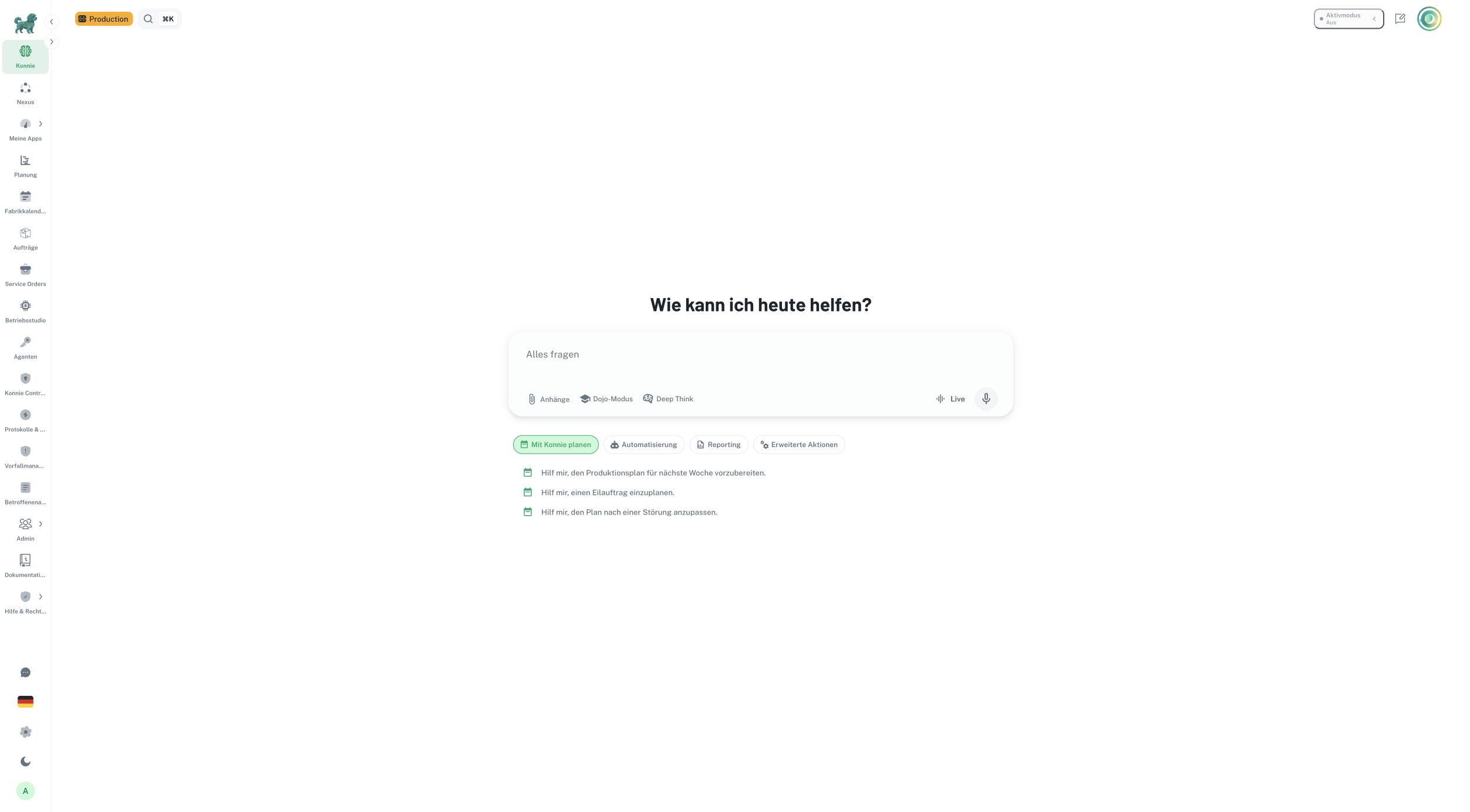
German interface: suggested prompts and available controls depend on your scope and configuration.
Choose the kind of help you need
For a question, name the record and ask for evidence: “Explain the status of production order PO-1042 and identify the records you used.” For analysis, attach the source and define the calculation: “Compare planned quantities with the attached actuals; show missing matches and units.” For a change, describe the intended outcome and constraints: “Prepare a material-request workflow for site North. Show the Table and App plan, including any necessary Automation, before making changes.”
Konnie may ask for a missing target, quantity, date, or decision. Answer in the same conversation. A displayed page or an attachment helps provide context, but it does not replace identifying the exact target when several records could match.
Results can include text, file previews, order cards, visualizations, plans, and action review cards. Check source dates and assumptions. Moving a slider in an explanatory visualization changes that scenario; it does not apply the corresponding factory change.
Read status before acting on an answer
A plan describes work. A draft or staged change is a candidate. An accepted change has been reviewed. Applied indicates that a change was saved through its operational workflow. A background assignment may publish supported configuration under the specific delegation you approved. Read its receipts and verify the resulting workflow before putting it into production use.
Konnie's permissions and the organization's approval policy apply to tool actions. A spoken instruction is subject to the same restrictions. See approvals and governance.
Languages and personal preferences
Konnie uses the interface language as context, and you can ask for an answer in a specific language. Check names, quantities, dates, and specialist terminology, especially when using speech or translations. In Konnie's personal settings, adjust answer length, tone, and step detail, then save. These preferences do not change organization permissions or the configured AI provider.
What to verify
AI answers can omit information, misread an attachment, or make an incorrect inference. Verify critical values against the source record and use your approved operating procedures for quality, safety, and production decisions. Request an explanation of uncertain or missing data. Successful configuration creation does not demonstrate a successful operator submission or correct downstream processing.
Continue with chat, files and media, voice and Live, or plans and staged changes.