Shop-floor accounts and devices
A named account identifies an individual. A shop-floor account supplies a configured operating workspace for a shared terminal. A device registration identifies one browser profile or installed app independently of its account; it is not a physical hardware identifier. Neither replaces the other's access requirements.
Prepare the workspace
An authorized administrator opens Admin → Users & Devices and the Shop-floor accounts, Devices, and Device groups tabs. Confirm site/environment. Decide which work centers, Apps, and account tabs the terminal needs. Configure the account and its offered assignments rather than signing a shared device in as a broad administrator.
Device groups organize related terminals; access groups organize permissions. Keep these concepts separate when assigning devices or people.
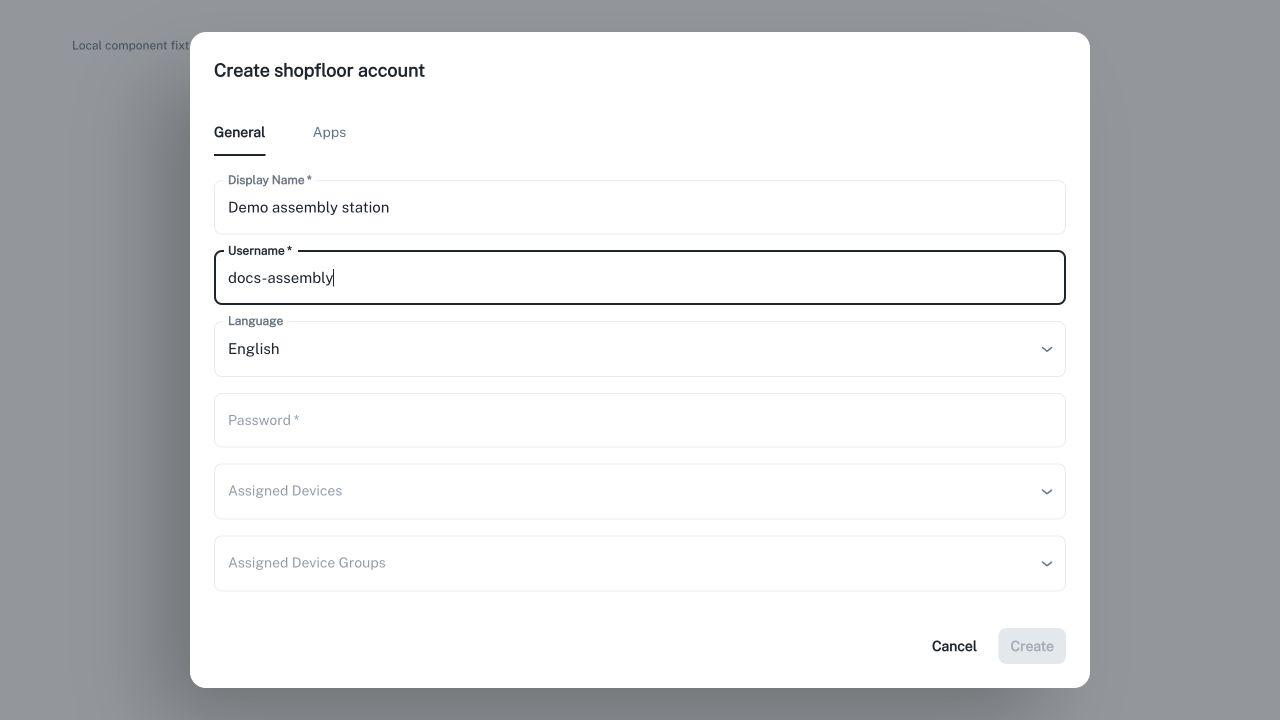
Local illustration of the actual account-creation interface with fictional demonstration data; no credentials were entered and no account was submitted.
Connect a device
Phones, tablets, computers and shared terminals follow the same registration flow. One registered device can be assigned to several shop-floor accounts; the account login determines which workspace is active.
- On the device, open the shop-floor sign-in page. For daily use, install Ennea Shop Floor first: on iPad or iPhone choose Share → Add to Home Screen, then open the new icon. On other supported browsers use Install app or Add to Home screen. For browser-only use, choose Connect in this browser.
- In the installed app, choose Show pairing code. Leave the QR code and short code on screen.
- An administrator scans the device's QR code and signs in, or opens Devices → Connect device on another device and enters the eight-character code. A copied code can be pasted into the code fields, including its separator.
- Check the selected tenant, site and environment, confirm that the code matches the physical device, optionally choose one or more shop-floor accounts, and click Connect device. Naming is optional. This registers and approves the installation and adds the selected account assignments. Accounts can also be assigned later in administration.
- On the approved device, sign in with the username and password of an assigned shop-floor account. Check its Apps and workspace before handing the device over.
Pairing codes expire after ten minutes. A lost response can be retried in the same app or browser; the device retains its pending setup proof. Knowing the displayed code alone cannot claim the device's enrollment. Only approve a code shown on the intended physical device. A revoked or inactive device requires administrator review; pairing does not silently restore it.
Keep setup and daily work in the same installed app or browser profile. Browser storage and installed-app storage can differ. No code needs to be copied from Safari into the installed app. If an older shortcut opens the general dashboard, install from the shop-floor sign-in page and connect the new installation before retiring the old entry.
Use several accounts on one device
An administrator assigns the device directly, or through an allowed device group, to each required shop-floor account. After signing out, sign in with another assigned account's credentials. The device remains registered; no new pairing code or administrator approval is needed for each account change. Logging out ends the active account session. It does not save a password or grant access to accounts that have not been assigned.
Existing password-based installations
Previously registered installations can continue to use the shop-floor password sign-in. The secondary registration-link workflow is also retained: generate a link in device administration, register the intended installation, approve and assign it, then use the account password. Legacy links last one hour and are private setup credentials. This fallback does not automatically establish a renewable device enrollment.
Language and administration shortcuts
New shop-floor accounts preselect the administrator's interface language. Choose German, English, or Automatic (device language) in the account editor. Automatic keeps the language chosen on the device and otherwise uses its browser language; an explicitly configured account language applies after verified sign-in. The Accounts screen remembers the last selected tab for the current user and workspace during the browser session.
After connecting a device, use Back to devices to return to the device list or Connect another device to start with a fresh code. Select several device rows and choose Edit devices to review individual names and an optional common activity setting. Results appear per device; retry only unsaved entries after checking any unconfirmed result. Changing activity ends current device sessions and keeps approval and assignments.
Konnie can guide setup, find device and account names, and prepare pairing or device-name changes as normal staged changes. Open setup on the actual tablet and share only its displayed eight-character code. Review the device name, target accounts, current site/environment and access impact before applying under your configured review policy. Pairing approves the device and adds the listed account assignments; staging alone does not connect it. Never share passwords, private device proof or legacy registration links in chat. Expired codes require a fresh code; an unknown application result requires inspection before any retry.
Operate and replace devices
Use the configured browser profile or installed app with a stable connection. An active account session can reopen and renew while its account and device remain authorized. Log out returns to account login and preserves device registration. Disconnect device revokes the enrollment and requires an administrator to reconnect it; the device entry remains in administration.
The device enrollment expires after 30 days without authorized use, with a maximum lifetime of one year before pairing again. Older password-only sessions return to sign-in when they expire. A temporary connection or server failure keeps the registration and locks the workspace until session verification succeeds; use Try again after reconnecting. Removing an account's device assignment stops that account's access while leaving the device available for its other assigned accounts.
Clearing site data, changing browser profiles, reinstalling the app or replacing the terminal can require setup and approval again. The app cannot recover a deleted registration from its login token. Allow persistent site storage; avoid private browsing for shared terminals.
The installed app requires a connection for work. An offline launch shows a reconnect page; it does not serve cached operational screens or accept offline work. Updates wait until existing Ennea windows are closed: finish the current task, close all Ennea tabs/app windows, then reopen. A registered device can still fail access if it is unapproved, revoked, assigned to another scope, or the account lacks permission.
For a lost or replaced terminal, revoke its device authorization, inspect relevant sessions, and register the replacement separately. Removing approval and revoking access are administrative operations, not just cosmetic list changes. Deleting an entry should follow your organization's offboarding procedure.
Common failures
| Symptom | Check |
|---|---|
| Pairing code expires | Show a new code on the device and use that code in administration. |
| Administrator cannot connect | Matching code, current workspace, active selected accounts and device/account management permissions. |
| Device awaits approval | Verify the physical terminal and approve the correct entry. |
| Account login is rejected | Correct credentials, active account, and device or device-group assignment in the same workspace. |
| Login succeeds but workspace is empty | Account tabs, App publication, work-center assignment, permissions. |
| Login asks for setup after installing | Open the previously registered app/browser, or set up and approve this installation separately. |
| Connection unavailable | Restore connectivity and retry verification; do not clear device storage. |
| Access stopped after replacement | Registration/session state and old-device revocation. |
Do not reset local device storage or copy another terminal's identity to bypass a failure. Ask the administrator to re-provision the terminal.
See Shop floor, Running Apps, and Roles and permissions.