Automations
An Automation connects a trigger to processing steps. Configure it in Operations Studio → Automations. Saving its draft, publishing its graph and activating it are separate actions. Operators can invoke a manual workflow through a configured App button. App inputs can save directly without an Automation.
Choose the trigger and outcome
| Trigger | Use it when | Required setup |
|---|---|---|
| Manual | An operator deliberately starts a workflow | Active manual Automation and an App action binding |
| Scheduled time | A workflow should run daily, on selected weekdays or at a regular interval | Active published Automation with a time zone and explicit missed-run/overlap policies |
| Platform event | An operational change should start a process | Event offered by the current event catalog and relevant context |
| Connected-system event | An integration delivers a declared observation | Published, enabled event source with configured secure access |
The trigger selector lists the currently supported platform events and connection-specific events. Filtering by object type narrows that list. Choosing a connected source binds the event to that connection and event kind; a similarly named event from another connection does not match.
Run on a schedule
Choose Scheduled time in the trigger. Select Every day, Selected weekdays or At an interval. Daily and weekly schedules accept up to eight distinct times, so one workflow can prepare several shifts. Intervals range from 5 minutes to 7 days and start from activation.
Choose the factory's time zone, for example Europe/Berlin. Daily and weekly times follow that zone through daylight saving changes. A local time that does not exist during the spring change is skipped; a time repeated during the autumn change runs once. Intervals measure elapsed minutes.
Decide what happens when a scheduled time is missed: Skip the missed run moves to the next time if a run is more than one minute late, while Catch up once after recovery starts one run for the latest missed time. Recovery never starts a backlog of every missed occurrence. A run may start shortly after its scheduled time while the worker picks it up.
For a previous run that is still active, choose Skip the next run or Allow both runs. A run waiting for an event, deadline or approval still counts as active. Use the skip policy when the same business process should have only one run in progress. Publish and activate the Automation to start its schedule. A newly published schedule starts from its new activation; draft edits do not change the running schedule.
Build the graph
- Create the Automation and name the business outcome.
- Choose Add Node to add a Trigger, at least one Action and an End.
- Connect them in execution order. Every intended node must be reachable, and every trigger must reach an action and an End.
- Select the trigger and choose its event. Add typed conditions to limit which events qualify.
- Select each action and configure its inputs, destination and required values.
- Add a Condition node when paths must differ. Connect its then/else outputs to the intended steps and End.
- Save, preview, publish and resolve validation issues before activation.
Loops, unreachable nodes and dangling connections cannot be published. A condition can use AND/OR groups and compatible typed values. Check both branches with representative inputs; a false branch is part of the workflow and needs an intended result.
Preview without executing
Choose Preview, select a recent compatible event or supply representative event JSON, then run the preview. It shows whether the trigger matches, condition decisions and the planned steps. Preview is a dry run: it does not call Konnie, send notifications, queue labels or perform connected actions. It establishes the graph's planned path, rather than the receiving system's actual result.
At a Wait step, preview shows the configured duration or event/deadline and stops. Test each following path with real test events; preview cannot predict a future event.
Wait for an event or deadline
Add a Wait node between the steps that prepare a process and the steps that should follow later. Choose one of two modes:
| Continue after | Configure | Connect |
|---|---|---|
| A duration | A whole number of minutes, from 1 minute to 30 days | Time elapsed to the next step |
| An event or deadline | Supported platform event, matching reference and a deadline from 1 minute to 30 days | Both Event received and Deadline reached to their intended next steps |
An event wait compares a reference in the awaited event with a reference in the original trigger. Use Event object on both sides when both events describe the same object. For events about different object types, choose their shared order, work-center or malfunction reference. Both references must exist; names and display labels do not establish a match. Only an event in the same tenant, site and environment can continue the wait.
For a malfunction escalation, read the original malfunction after waiting and check its current status before deciding to notify:
Malfunction started
        ↓
Wait 15 minutes
        ↓
Read the original malfunction
        ↓
Current status = unresolved?
   ├─ Yes → Notify user → End
   └─ No  → End
Choose A duration for the Wait, then Malfunction in Read record and the triggering malfunction as its source. In the Condition, choose the read step's Current status and compare it with unresolved. Connect the true path to the notification and the false path to End. The read uses that malfunction's exact ID, so a newer malfunction on the same work center does not replace it. A resolution saved without a delivered resolution event still prevents escalation.
An event wait can finish early when the matching Malfunction resolved event arrives: connect Event received to End and Deadline reached to the same current-record read and condition. The deadline alone does not establish that the malfunction remains unresolved.
Actions after a wait retain their approval requirements. In-app notifications currently pause for approval before sending; a schedule or deadline does not authorize the notification.
Waits are saved durably and continue automatically after a server restart. The run keeps the published workflow version it started with, and already completed actions are reused. Deactivating the Automation cancels its pending waits before further actions. Revoked access or a restricted or unavailable original event blocks continuation for review.
Read current business records
Add Read record to retrieve a malfunction, work center, production order or operation at that point in the workflow. Choose the object type and an offered record source from the trigger or an earlier step. A trigger payload describes the original event; use the read result for decisions about current state.
The read returns a found/not-found result and the supported operational fields. It uses the exact record in the workflow's tenant, site and environment and rechecks current permissions and privacy restrictions. A missing record does not become an unresolved record. Conditions can use the read step's Current status, Still active, or other offered fields. Current-record reads run again on continuation, including after a pause for approval.
The Update order priority action supports one bounded native change: choose a preceding production-order read and the new priority. The read must occur on every path to the update. The update checks the record's saved modification timestamp; if another change occurred after the read, it stops instead of overwriting that change. Its existing permissions and action approval policy still apply. Completed changes retain a receipt for safe recovery.
Preview shows the configured record source and stops before a live read; it does not fetch a business record or predict its future status. Read results remain private workflow data and are not included in generic run diagnostics.
Select supported steps
| Step/action | Purpose and checks |
|---|---|
| Notify user | Send the configured message to selected active users with access to this scope. |
| Wait | Continue after a saved duration, or choose between a correlated event and its deadline. |
| Read record | Read the exact current malfunction, work center, production order or operation before making a decision. |
| Update order priority | Apply the selected priority to a previously read order with a modification check and saved receipt. |
| Create Konnie task | Create the configured task for its intended recipients/context. |
| Write automation log | Record a workflow message; it is not an operational order update. |
| Ask Konnie | Run the configured prompt with selected context and text/JSON output. An available configured provider is required. |
| Print label | Queue a published label with printer target, copies and mapped data. Queuing is not physical print confirmation. |
| Material Flow | Run the configured supported placement/release operation. Validate the target and required data. |
| Connected action | Run a declared published integration action using explicit inputs and mappings. |
| Import production order / report completion | Use the configured integration and native production-order mapping for the offered journey. |
Availability depends on the trigger and configuration. App-defined inputs connect optional reusable processing through named manual App actions; no Form trigger is needed.
Map data explicitly
The inspector offers fields from the chosen event and declared results of earlier connected actions. Choose a compatible field or enter a fixed value. A label match does not bind values automatically. Later steps can use a declared result only when the producing step runs on every path leading to them; forward references and optional-branch results are invalid.
Named manual App actions receive their explicit JSON input under payload.appInput together with authorized App/context references. Map from the declared input and the published action contract. Avoid guessing field paths; verify the preview. See Automations in Apps.
Publish and activate
Publication checks the graph, destinations, current dependencies, field types, provider availability and your authority to delegate the required operations. Use a validation issue's Open action to inspect the affected node, repair it and publish again.
Choose Activate only after the intended published graph is ready. Deactivate stops scheduled and event-driven starts and cancels pending waits; it does not remove the results of earlier runs. Editing a draft does not alter a run already admitted against a published version.
Test in the intended site/environment. Verify the operational result and receiving system, rather than only the graph preview. Messages, labels and external writes should use an agreed test recipient or destination.
Read run progress and handle failures
Run and step history distinguish successful, failed, waiting, pending-approval and unresolved work. A waiting run shows its event or continuation deadline and continues automatically; it does not need a manual retry. App action buttons can show recent runs and refresh/resume controls. These views contain safe progress metadata; sensitive submission answers and private connected-system results are not exposed as generic run diagnostics.
If a response is lost, refresh the existing run. An offered Resume or Retry continues its existing event and admitted version; a new intentional invocation is a new run. Current permissions, restrictions, dependencies and result existence are rechecked during recovery. Changed workflow versions can prevent resume and require author review.
For an uncertain external outcome, inspect the connected execution before repeating it. Do not treat a timeout as proof that no action occurred. See Workflow promotion, Labels and printing and Audit logs.
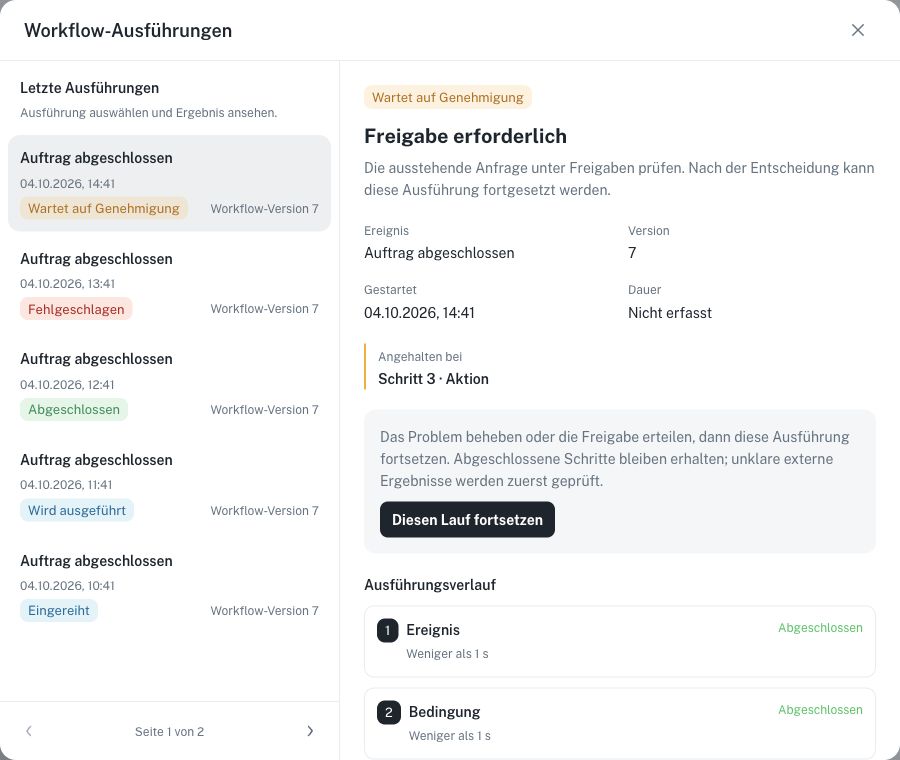
German interface with synthetic data. A completed trigger event can lead to a run that still waits for approval. Select the image to view it at full size.