Factory Calendar
The Factory Calendar defines the working-time model used by calendar-aware production planning and working-time calculations. It records available shifts and explicit exceptions; it does not create a personnel roster or infer holidays automatically.
Use it to configure:
- shifts
- breaks
- planned downtime
- vacations
- cleaning windows
- other unavailable time
The calendar is designed to make inheritance visible. You can see whether a rule comes from the factory default, a work-center group override, or a work-center override.
Who Can Use It
Select the intended site and environment first. planning.read permits reading the calendar; planning.manage permits event, template and calendar-setting changes in that exact workspace. A role name alone is not proof of access.
Konnie can also read and change the Factory Calendar after you explicitly confirm write actions in chat.
Open The Calendar
Open Dashboard → Factory Calendar.
The page has three main areas:
- Hierarchy: select the factory, a work-center group, or a work center.
- Calendar: view and edit working-time events.
- Effective Calendar: inspect the final inherited calendar and working-time summary for the selected scope.
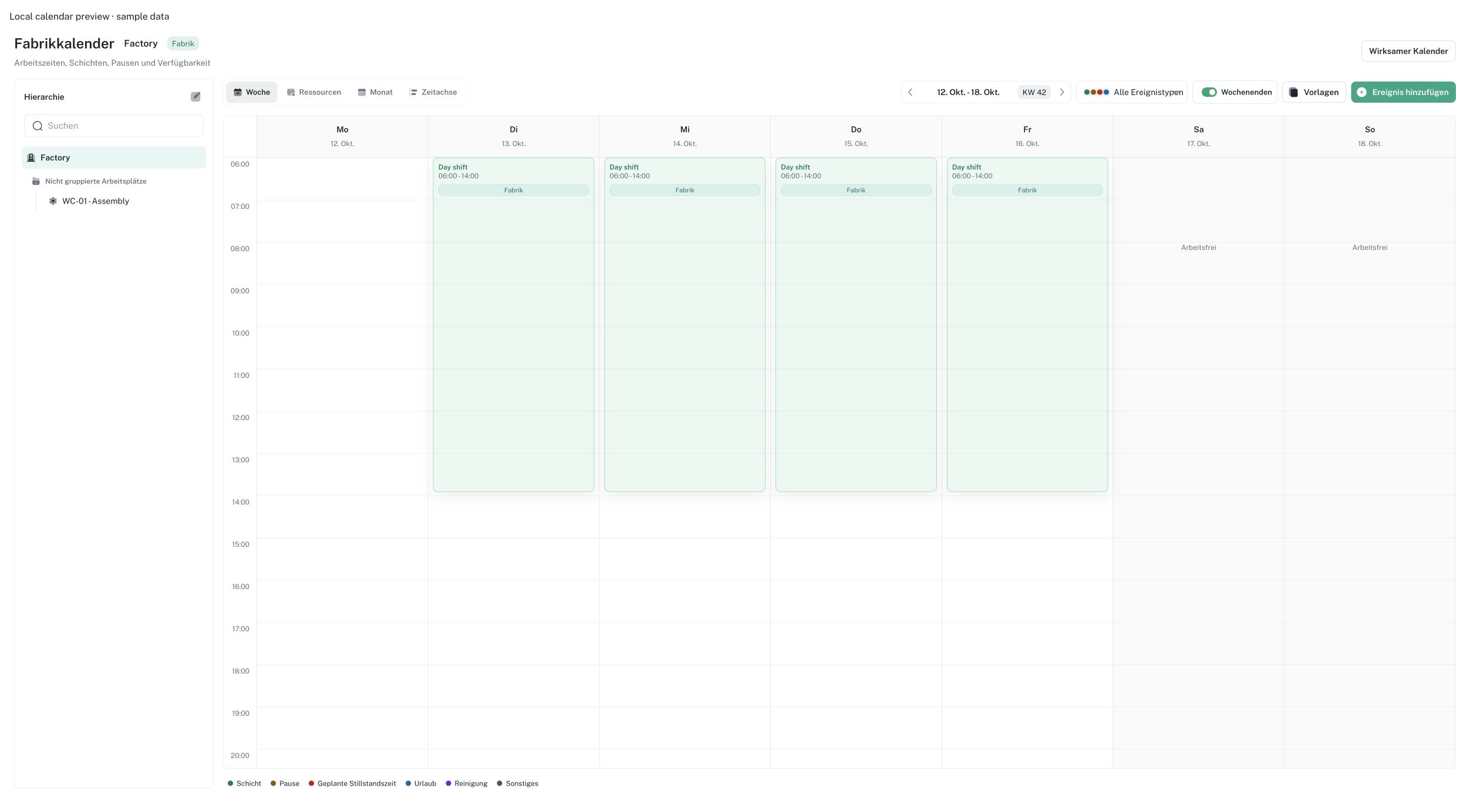
German interface with synthetic sample data. Four shifts illustrate the selected week after applying a working model from Tuesday. Select the image to view it at full size.
Select A Scope
The hierarchy starts at the factory level and then shows work-center groups and work centers.
Select:
- the factory to configure factory defaults within the active site/environment
- a work-center group to override or extend the factory default for a group
- a work center to configure one specific resource
Work centers without a group are listed under Ungrouped work centers.
Calendar Views
Use the view selector to switch between:
- Week: time-grid view with days as columns and hours as rows.
- Resource: work centers as rows and days as columns.
- Month: lightweight overview for a wider date range.
- Timeline: grouped view by event source.
On smaller screens, the view selector is icon-only. Hover or focus an icon to see the view name.
Date Navigation
Use the arrows to move to the previous or next week, or the previous or next month in Month view. Select the date range/month button to return to today’s period. This toolbar button does not open a date picker; the event and template editors provide date inputs for their own settings.
The calendar week number is shown as CW followed by the ISO week number.
Show Or Hide Weekends
In week view, use the Weekends toggle to show or hide Saturday and Sunday.
Your preference is saved in the browser, so the next time you open the Factory Calendar on the same device, Ennea keeps the same setting.
Event Types
The calendar supports these event types:
| Event type | Typical use |
|---|---|
| Shift | Available production time |
| Break | Paid or unpaid break time inside a shift |
| Planned downtime | Known non-production time, for example maintenance |
| Vacation | Personnel-related unavailable time |
| Cleaning | Cleaning or sanitation activities |
| Other | Unavailable time that does not fit another category |
Each event is color-coded. The legend below the calendar explains the colors.
Source Badges
Events can come from different inheritance levels:
| Badge | Meaning |
|---|---|
| Factory | Factory-level default |
| Work Center Group | Group-level override or addition |
| Work Center | Work-center-specific override or addition |
These badges help you understand why an event appears on the selected calendar.
Add An Event
There are two ways to create an event:
- Select Add event.
- In week view, click or drag on an empty time slot.
When you create an event, choose:
- title
- event type
- scope
- date
- start and end time
- inheritance behavior
If you create an event by clicking or dragging in the calendar, Ennea pre-fills the date and time range.
Dates, recurring rules and timezone
A dated event can have an end date later than its start date. Use it for multi-day maintenance or vacation and verify both dates and times before saving. An end must follow its start. Calendar times use the configured calendar timezone; confirm it with your administrator when browser and factory timezones differ.
Recurring weekly models are normally configured through templates. When editing an event backed by a recurring weekly rule, the saved change affects that rule and its occurrences, not just the visible occurrence. Check its recurrence and source before deleting or editing. Use a bounded template or dated exception for a temporary change.
Edit, Move, Resize, Or Delete Events
Select an event to open its details drawer.
From the details drawer, you can:
- edit event details
- delete the event
- review its source and inheritance behavior
In week view, you can also change the planned time directly:
- drag an event to move it to another time or day
- drag the top or bottom edge to resize it
Short events may show a compact label so the calendar stays readable.
Breaks Inside Shifts
Breaks that fall inside a shift are shown as sub-events within that shift.
This keeps the shift visually connected to the break time and makes the working-time calculation easier to understand.
Break time is subtracted from gross shift time in the working-time summary.
Inheritance Behavior
When you add an event, choose how it should interact with inherited events.
| Behavior | What it does |
|---|---|
| Add to calendar | Adds the event without hiding inherited events. |
| Override time slot | Hides lower-priority inherited work-model events that overlap the same date and time. |
| Replace entire day | Hides lower-priority inherited work-model events for that calendar date. |
| Replace work model from this date onward | Replaces inherited recurring shift and break rules from the selected date onward. |
Inheritance priority is:
- Factory default
- Work-center group override
- Work-center override
Work-center rules have the highest priority.
Effective Calendar Inspector
The Effective Calendar panel shows what applies after inheritance is resolved.
It includes:
- selected scope
- inheritance chain
- events grouped by source
- applied work-model templates
- working-time summary
The inheritance chain explains the path Ennea used, for example:
Factory → Final Assembly → WC012
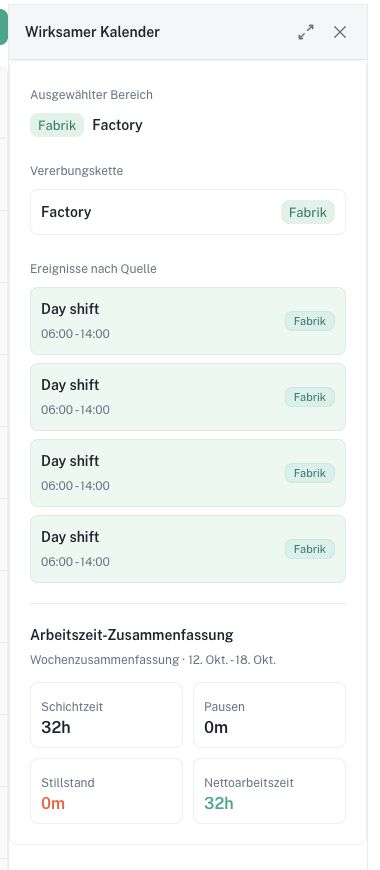
German inspector with synthetic data: source rules and 32 hours of sample working time. Select the image to view it at full size.
Working-Time Summary
The summary shows the selected period. In week view, this is normally the visible calendar week.
The calculation is:
net working time = time inside shifts without a break or unavailable event
Unavailable events include planned downtime, vacation, cleaning and Other. Overlapping shift intervals are counted once, and overlapping blockers are not subtracted twice. A blocker outside a shift does not reduce that shift's net time. The event-type display filter narrows the visible events; it does not change the saved work model.
Use the summary to check whether a scope has the expected available capacity before planning production.
Work Model Templates
Templates are reusable weekly working-time models.
Common examples are:
- Standard Day Shift
- Two-Shift Model
- Weekend Maintenance
Open Templates to create, edit, duplicate, delete, preview, or apply templates.
When applying a template, choose:
- target scope: factory, group, one work center, or multiple work centers
- validity: from a date onward or within a bounded date range
- confirmation behavior
Editing or duplicating a template changes the reusable definition only. Existing calendar entries keep their applied values; apply the template separately to change working time. Template updates replace the complete weekly definition. Templates with existing applications cannot be deleted; deleting a template is not a way to clear calendar entries.
The default replacement mode replaces overlapping weekly shifts and breaks at the selected targets within the chosen validity window, even when older applications have different start dates. Explicit downtime, vacation, cleaning, other events, and one-off exceptions are preserved. The additive mode keeps existing rules and adds the new entries.
Choose Factory for a factory-wide default that also applies to future work centers. Applying to a list of current work centers creates local rules instead. Existing group and work-center overrides remain and must be reviewed separately.
When you want to replace old local work models with one factory default, ask Konnie to preview a factory-wide replacement that includes group and work-center working times. The preview shows how many rules will be removed, shortened, or split. After your confirmation, Konnie applies the cleanup and new factory rules in one transaction. This explicit cleanup also replaces dated local shifts and breaks within the chosen validity window. It preserves dates outside that window and downtime, vacation, cleaning, and other event types. Konnie does not need to delete hundreds of entries individually.
For bounded template applications, the inherited or previous model resumes automatically after the end date.
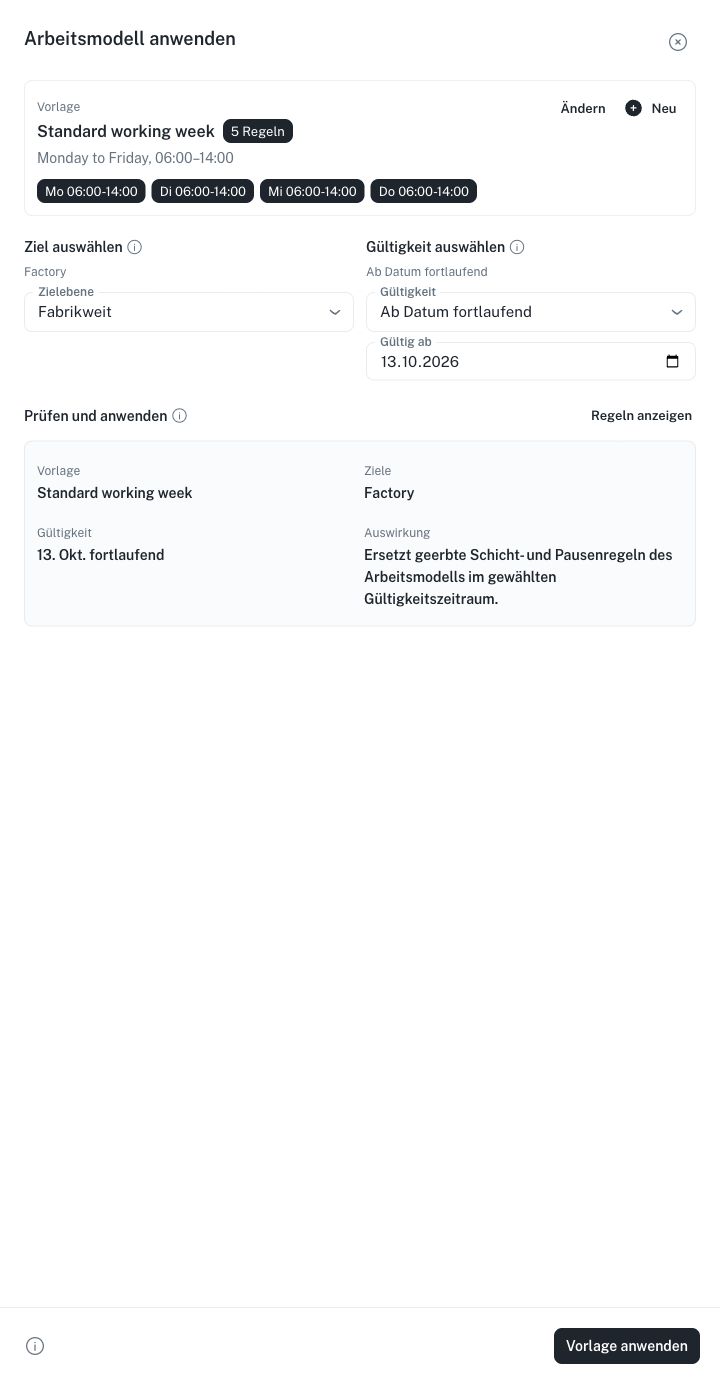
German template review with synthetic sample data. The selected target and validity are part of the change. Select the image to view it at full size.
Realtime Collaboration
When multiple users have the Factory Calendar open, Ennea refreshes calendar data after changes are made by another user.
The header also shows other viewers admitted to the scoped calendar presence channel.
This is page-level presence only. It does not track cursors.
Working With Konnie
You can ask Konnie to help with calendar work, for example:
- "Show me the effective calendar for WC012 next week."
- "Find planned downtime events in June."
- "Create a cleaning event for Packaging on Friday from 14:00 to 15:00."
- "Apply the Two-Shift Model to WC001 from June 1 to June 14."
Konnie asks you to confirm the proposed model, targets, and dates before making calendar changes. Once you confirm, it carries that proposal through without repeatedly asking for the same approval. After applying a template, Konnie reads the effective calendar for the first seven days (or the shorter application window) at up to 20 targets. For a factory default this includes current work centers and, where the limit allows, groups. The result states the dates and targets checked and flags missing rules, competing entries, and local overrides. Additional dates and targets require further checks. If a read fails after the change was saved, Konnie reports the incomplete verification instead of applying the template again.
Practical Tips
- Configure the factory-level template first, then add exceptions at group or work-center level.
- Use group overrides for shared patterns, such as all final assembly work centers.
- Use work-center overrides for local exceptions, such as maintenance on one machine.
- Use bounded template applications for temporary surge periods.
- Check the Effective Calendar before relying on the summary for planning.
Troubleshooting
I do not see a work center
Check the hierarchy search. Ungrouped work centers are listed under Ungrouped work centers.
An inherited event disappeared
Check whether a higher-priority event uses Override time slot, Replace entire day, or Replace work model from this date onward.
The net working time is lower than expected
Review breaks, planned downtime, vacations, cleaning and Other events in the Effective Calendar inspector. Their overlap with shifts reduces net working time.
I cannot edit events
Check planning.manage for the active site/environment. If your access changed, reopen the workspace before trying again.
Example: a temporary second shift
Start from a factory day-shift template and inspect one work center's Effective Calendar. Create or duplicate a template with the required second shift and breaks. Apply it to the intended group for a bounded date range using replacement mode. Check the group's work centers during that window, including any local overrides, and check a date after the window to verify the previous model resumes. A local maintenance event remains separate and can reduce capacity.
Save failures and planning changes
If a drag or resize fails, reload the effective calendar and inspect the saved event; an optimistic screen position is not proof of a saved change. Correct invalid times, date windows or targets before retrying. If a template cannot be deleted because it has applications, review those calendar rules separately instead of using deletion to clear working time.
For Konnie's stale-preview message, request a fresh preview and confirm its new targets/dates. If saving succeeded but readback failed, ask for verification instead of applying the change again. A successful limited readback covers only the stated dates and targets.
Calendar changes can invalidate a prepared Scheduler preview. Recalculate the affected schedule against current working time. Existing production is not automatically a newly approved plan merely because the calendar changed.
See Planning, work-center configuration and support.