Maintenance
Use Maintenance to plan work on existing machines, follow released instructions, record results and keep the supporting documents together. Work orders share Ennea's assets, App-defined inputs, reports, planning, Warehouse and access controls.
Start in the right place
| Your task | Where to work | Guide |
|---|---|---|
| Define instructions, checklists and recurring plans | Operations Studio → Maintenance | Set up maintenance |
| Create and assign orders, inspect the queue and review completed work | Maintenance in the main navigation | Work orders and execution |
| Carry out work at a machine or on the shop floor | A published maintenance App or Blueprint | Compose an App |
| Find contractor documents, inspection records and audit evidence | Maintenance → Evidence & inspections | Evidence and inspections |
Select the intended site and environment first. The machine must already exist and the people involved need access to it. An administrator grants maintenance reading, management, execution, review and return-to-service permissions according to each person's job. App access and permission to use its actions are separate. See roles and permissions.
Maintenance permissions are assigned explicitly, including for existing administrators. Use access administration to edit the intended person or group in the correct site/environment and grant the permissions needed for their job. The maintenance workspace appears once maintenance and asset reading access are available.
Complete your first workflow
Start with one agreed maintenance task before adding recurring work.
- Save and release the instruction in Operations Studio. Author its input questions and checks directly in the execution App.
- Publish an App containing maintenance work selection and execution. Give the intended technician access to the App and its actions.
- In Maintenance, choose Create work order. Select the machine and the released instruction, set the deadline and choose the required review and return-to-service controls.
- Open the order in the execution App. The technician performs the work and records the App-defined inputs and supporting evidence.
- Complete the work, carry out the required review and authorize return to service when required. Use a different authorized person for completed-work review.
- Open Evidence & inspections and export the relevant audit packet to inspect the retained records.
A due date is a deadline. Reserving machine downtime is a separate scheduling step. Saving an instruction draft, releasing an instruction and completing a work order are also separate actions.
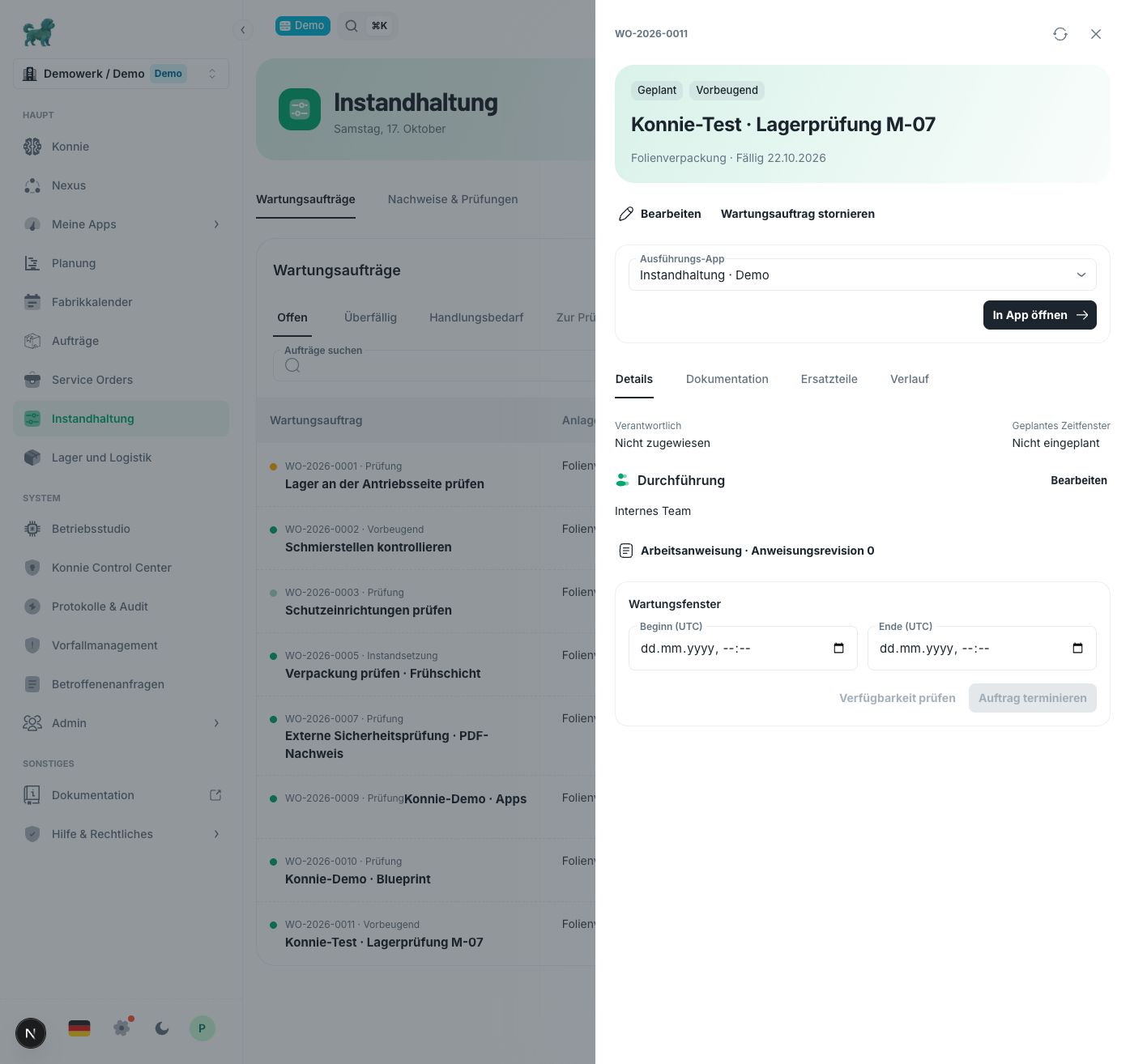
German interface with fictional demonstration data.
Compose an App
For a new React App, ask Konnie to build the technician interface with the existing maintenance APIs: order selection, current instruction, App-owned questions/evidence and explicit work actions. Keep the actual order and asset bound to each action; source layout does not bypass maintenance or Warehouse rules.
For an existing component-based App, open the Maintenance component category. Start with Maintenance work beside Work execution, then add only what the job needs.
| Component | Use it to |
|---|---|
| Report issue | Report a real breakdown and create corrective work for a machine. |
| Maintenance work | Find, select, filter and create work orders. |
| Work execution | Follow the selected instruction and record App-defined inputs and work. |
| Asset condition | Inspect readings and history, or record an observed reading. |
| Spare parts | Reserve, consume, release and return stock for the selected order. |
Keep the components' asset and work-order bindings consistent. Their default App variables are maintenanceAssetId and maintenanceWorkOrderId: selecting an order in the list should select that same order in execution and parts. Test this with two orders so an old selection cannot be mistaken for the next job.
Use the components in an existing production App, a dedicated technician App or a machine-specific App. A Blueprint can embed the same maintenance components; its custom layout still uses the same records and permissions. File controls also require file access, and linked evidence and reports retain their own access rules.
Leave Read only off in the execution component to allow recording. Enable work review or return to service there only when that App should provide those actions; both controls are off by default. Configure App access, publish and test with the intended operator. Publishing the App does not release an instruction or grant maintenance permissions. See Building Apps, running Apps and configuring Blueprints.
Work with Konnie
Ask Konnie in ordinary language to inspect a machine's maintenance, create an order, prepare instructions or recurring plans, or assemble the App and its Automations. Name the machine, task and deadline; include the instruction name when an existing instruction should be used. For an exact time, state the time zone as well.
For example:
Create a preventive work order for M-07 using the released bearing inspection instruction, due next Thursday at 14:00 Berlin time. Leave it unassigned and require work review and return to service. Only plan the work.
Replace the example machine and instruction with your own records. Review Konnie's proposed machine, instruction, deadline and settings before approving a change. Your organization's Konnie policy may require another authorized reviewer. That change approval allows the record to be saved; it does not approve completed maintenance or release the machine.
Konnie can author and adapt the App inputs and their conditions. The person doing the work supplies unknown measurements and physical confirmations. Use private saved drafts and explicit online submission/recovery; source editing does not record completed work.
Konnie can also answer questions such as “Which inspection certificate is current for M-07, and when is its next inspection?” It uses the same scope and access rules as the maintenance screens. See embedded assistants and approvals and governance.
Automate the surrounding workflow
Maintenance events can start existing Automations, and scheduled Automations can look up evidence and inspection certificates for reminders or follow-up work. Publish and activate the Automation separately, and verify its scoped access and field mappings with a representative order.
Use supported actions for reporting, order creation or updates, readings, scheduling and stock reservations. Physical work, safety confirmations, external acceptance, inspection verification and machine release remain human actions. See Automations for authoring, scheduling and run history.
If something is missing
Check the selected site/environment, publication state and the intended user's permissions. If Open in App has no suitable App, check that a published execution component permits recording and matches the asset. Check the App's actual destination connections and required action capabilities. If Konnie cannot chat, ask an administrator to check the organization's AI configuration and policy.
For a blocked order or missing evidence, follow the recovery steps in the work-order or evidence guide.